
Flickr & Wikimedia Commons in Moodle nutzen
In Moodle haben Sie die Möglichkeit, Bilder und andere Medieninhalte in Ihren Kursraum einzubinden. Aufgrund des bestehenden Urheberrechts ist es jedoch nicht immer einfach, frei nutzbare Bilder im Internet zu finden. Abhilfe schaffen hier die beiden digital verfügbaren Archive von Flickr und Wikimedia Commons. Über den Moodle Dateibrowser lassen sich die dort verfügbaren Medien auf bequeme Weise direkt in den Moodle-Kurs einbetten.
Repositories in Moodle nutzen
Prinzipiell haben Sie überall dort, wo Sie den TinyMCE-Editor nutzen können, auch Zugriff auf die im Moodle Dateibrowser implementierte Repository-Suchfunktion. Nutzen Sie hierfür die im Texteditor angebotenen Schaltflächen zum Hochladen von Multimedia Inhalten (weitere Informationen hierzu finden Sie auch in unserem FAQ-Artikel Funktionsumfang des TinyMCE-Text-Editors ).

Anwendungsbeispiel
Darüber hinaus ist es möglich, die Repositories direkt über die Aktivitäten Datei und Verzeichnis zu nutzen (siehe auch FAQ-Artikel Lernmaterial hochladen ).
Im folgenden Beispiel wird die Einbettung von Bildern aus dem Flickr Repository über die Aktivität Datei gezeigt. Die Verwendung der Repositories imTinyMCE-Editor verläuft analog.
Schalten Sie Ihren Kursraum zunächst per Klick auf den im oberen Kursbereich platzierten Schalter Bearbeiten in den Bearbeitungsmodus. Klicken Sie anschließend im gewünschten Kursabschnitt auf die Schaltfläche Material oder Aktivität anlegen und wählen Sie in der Aktivitätenauswahl die Aktivität Datei aus.
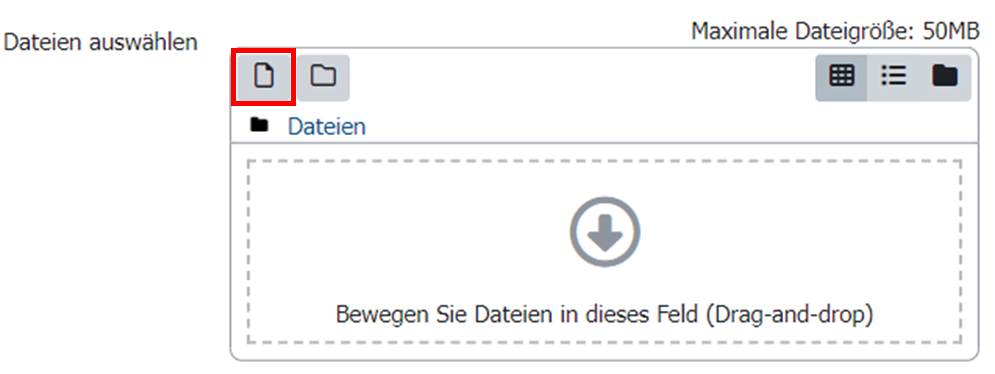
Im Abschnitt Datei auswählen der Aktivität Datei können Sie nun über den Moodle Dateibrowser (siehe Bild „Dateibrowser“) auf das Wikimedia Commons und das Flickr-Bilder Archiv zugreifen (siehe Bild „Verfügbare Repositories im Moodle Dateibrowser“).

Die Flickr Bildersuche bietet einige zusätzliche Optionen im Vergleich zum Wikimedia Commons Repository. So lässt sich beispielsweise einstellen, ob die in Moodle eingebetteten Bilder kommerziell nutzbar sein sollen, oder ob diese nachträglich noch bearbeitet werden dürfen. Außerdem kann die Suche im Flickr-Bilder Repository sowohl mithilfe von einzelnen Schlagwörtern, als auch anhand ausführlicherer Texte erfolgen. Für den Fall, dass Sie ein eigenes Flickr Konto besitzen, können Sie hier auch die von Ihnen hinterlegten Bilder anhand Ihres Anmeldenamens finden. Sobald Sie einen Suchbegriff eingegeben haben und auf Suchen klicken, öffnet sich die Dateiauswahl des gewählten Repositorys. Im Fall von Wikimedia Commons können Sie auf diese Weise neben Bildern auch Videodateien oder PDFs finden.
Wählen Sie nun die gewünschte Repository Datei per Klick auf den Button Datei auswählen aus. Wikimedia Commons Dateien zeigen Ihnen zusätzlich direkt bei der Dateiauwahl den Autoren und die genutzte Lizenz an. Die gewählte Mediendatei können Sie nun in Ihren Kurs hochladen. Anschließend wird diese genau wie Dateien, die Sie von Ihrem privaten PC hochladen, im Kursraum zur Verfügung gestellt.